Guide 1 · Alpha on TradingView
Alpha on Your Chart. Your Way.
See Alpha’s curves on every market, get alerts from your own chart, or automate every trade to your broker.
Choose your path

Path A See Alpha’s performance · Steps 1 – 3
Step 1 · 1 minute
Add Alpha to your chart
- Log in to TradingView with the username you gave us.
- Click Indicators, metrics and strategies, then Invite-only.
- Click Alpha AI Essential - Multi-Market…
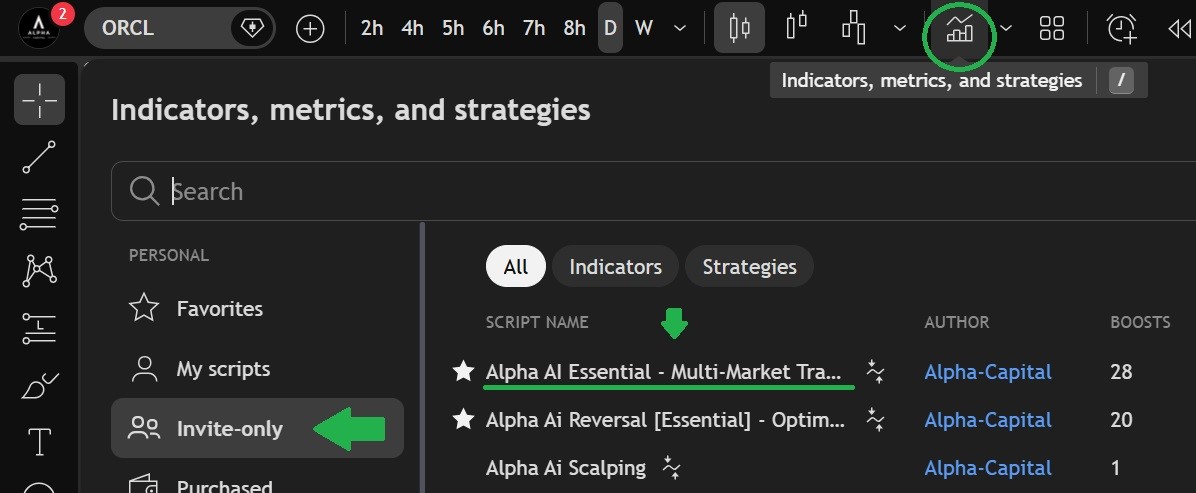
Don’t see it under Invite-only? Your access may still be on its way. Message us on Telegram @AlphaCapital_PRO.
Step 2 · 1 minute
Load the 87 markets
One click gives you every market Alpha is optimized for: stocks, indices, commodities and crypto. Open the list, then add it to your own watchlists.
Open the Alpha watchlist ↗Step 3 · 10 seconds per market
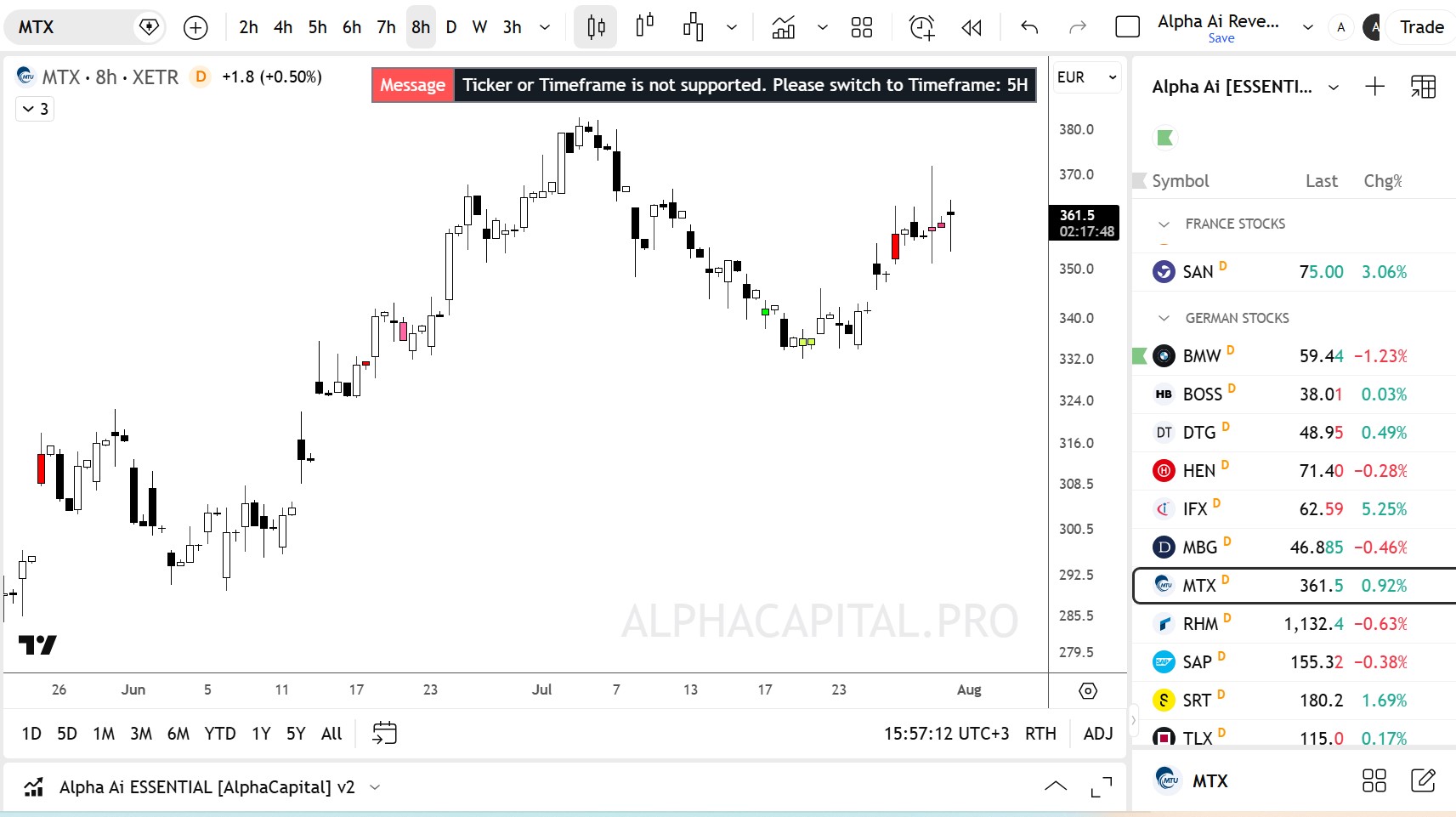
Match the timeframe Alpha asks for
Every market is tuned to its own timeframe. Open a market and Alpha tells you which one to use, top right of your chart: TIMEFRAME REQUIRED → switch chart to 6H (in this example). Switch, and you’re set.
Path B Get alerts from your chart · Steps 4 – 6
Step 4 · 1 minute · the important one
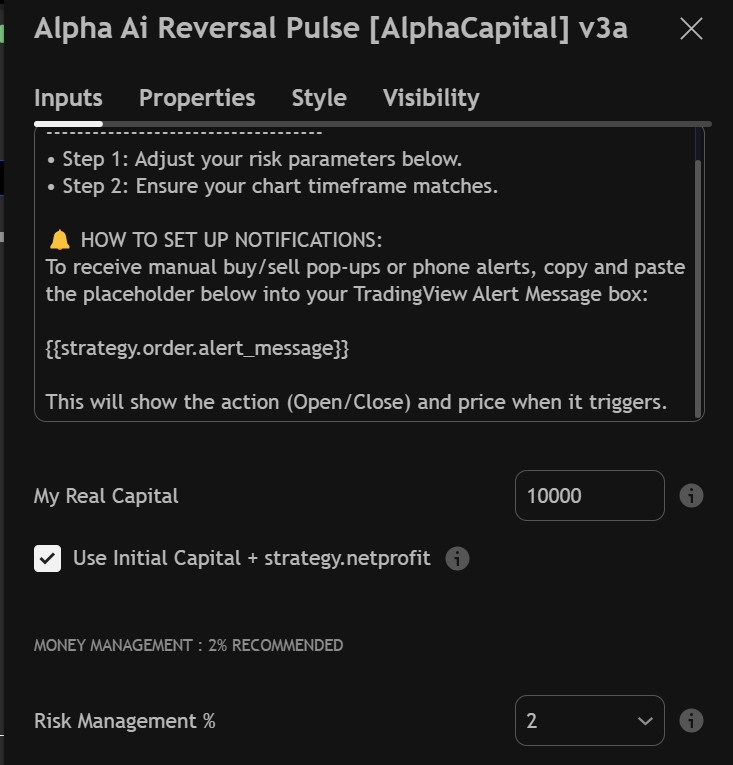
Set your capital. Alpha sizes every trade.
Double-click Alpha on your chart and open Inputs:
- My Real Capital: the money you actually trade with. Trading $5,000? Enter 5000.
- Risk Management %: start at 2% or less. Step 5 shows you the results at each setting.
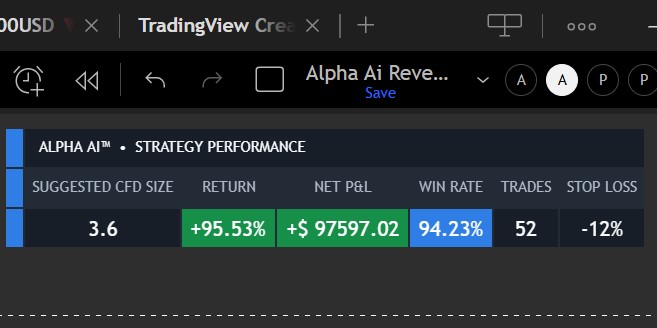
Alpha’s dashboard on your chart now shows your Suggested CFD Size for that market, next to its return, win rate, trade count and stop-loss.
Your allocation · which one is yours?
Quick check before you confirm: quantity × price = your trade size. Example: with a $10,000 balance at Defensive (10%), the trade size is about $1,000. Your broker’s “margin” is not your trade size. See why →
Step 5 · 5 minutes · for experienced traders
Check your risk setting before you raise it
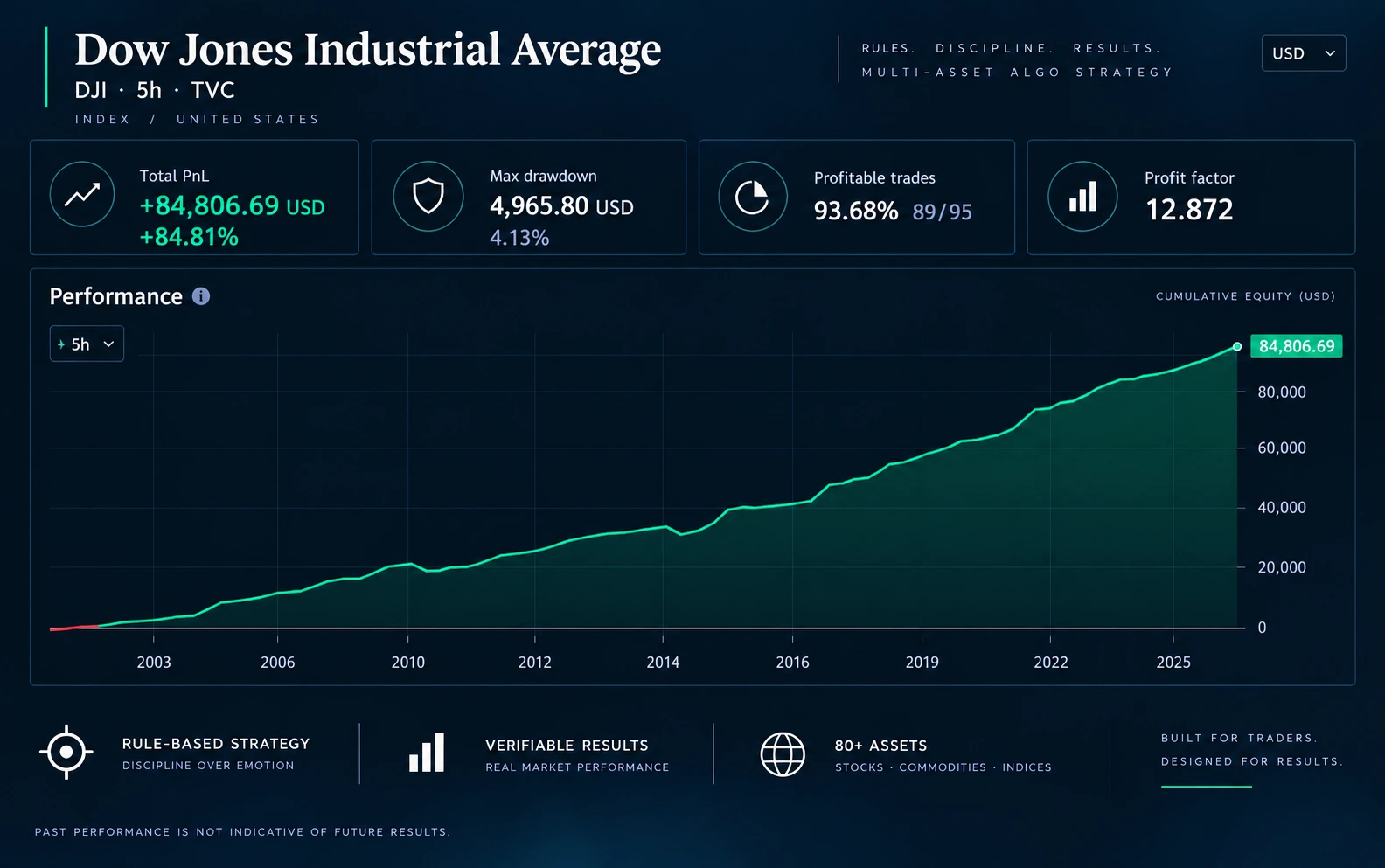
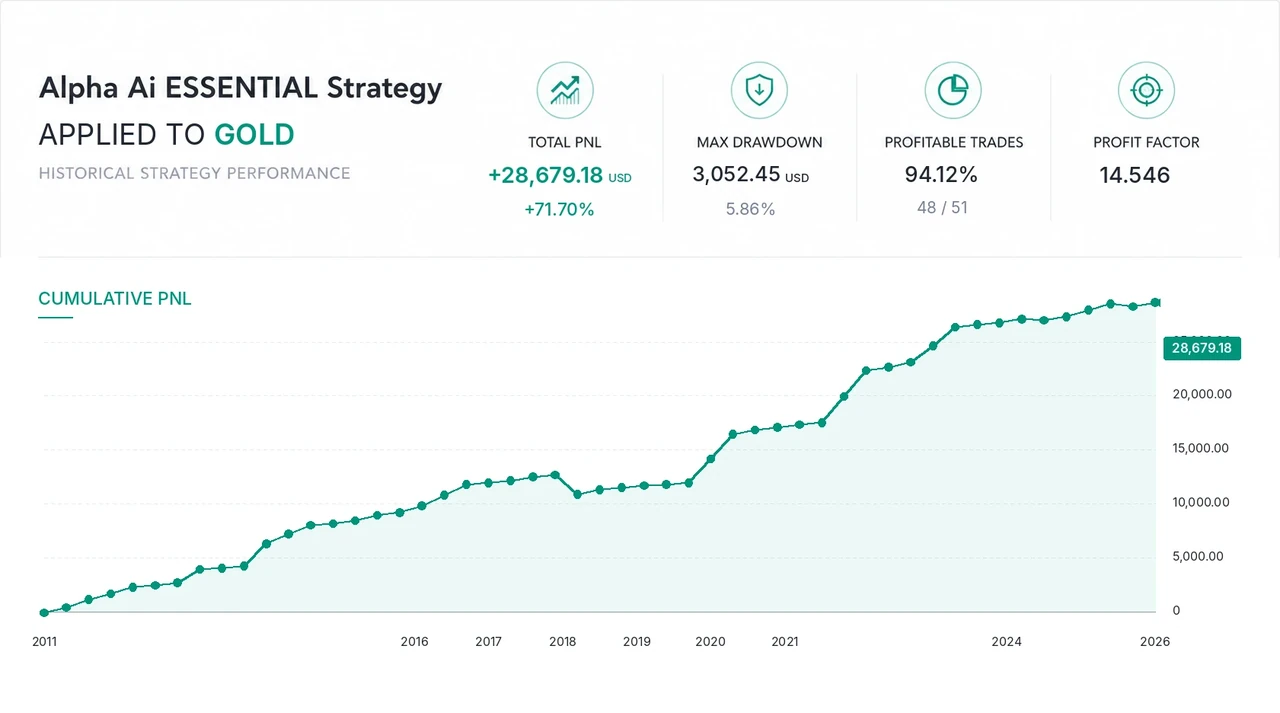
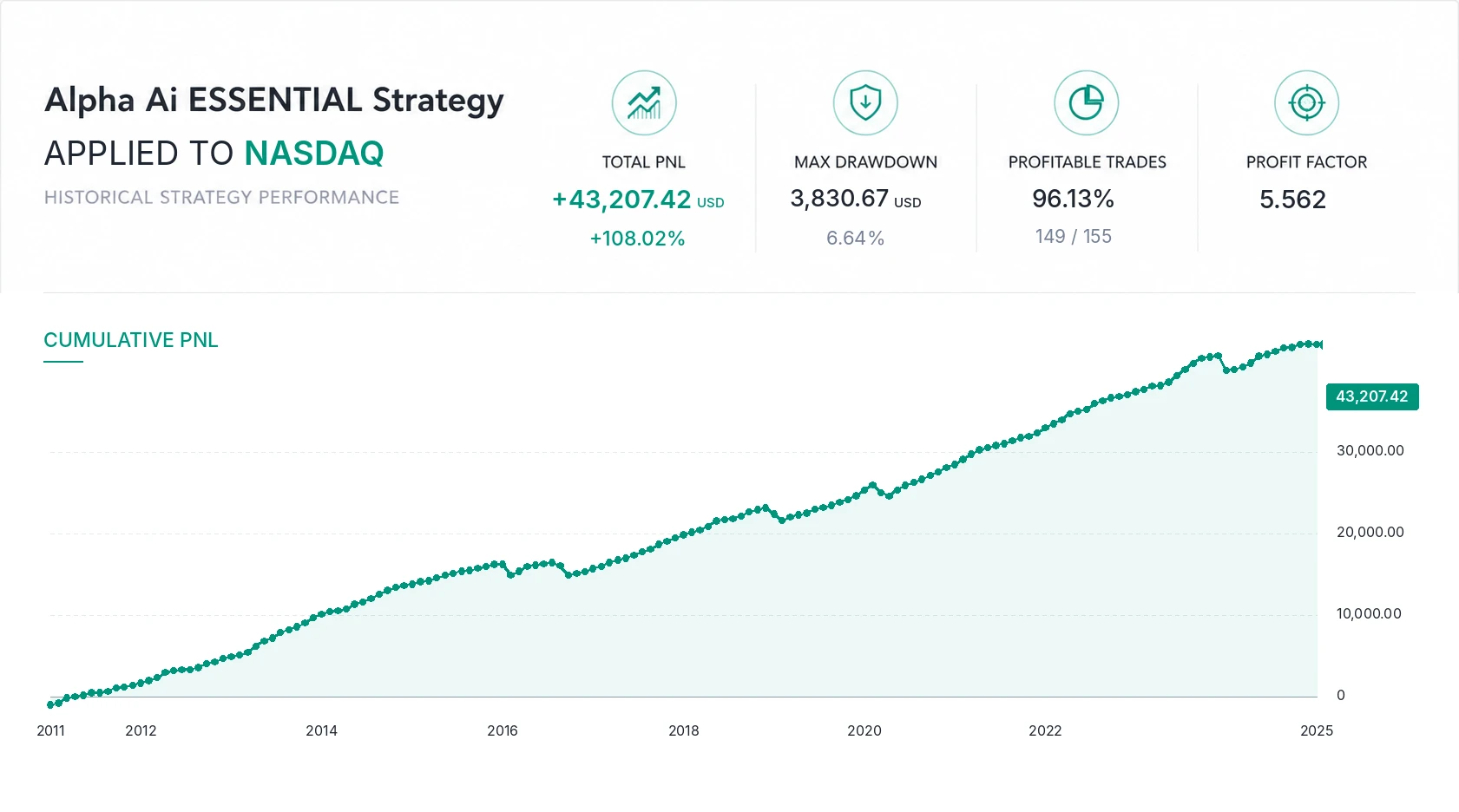
Want more than 2%? See it first. Change Risk Management %, then open TradingView’s Strategy Tester at the bottom of the chart and look at four numbers:
Comfortable with the deepest dip at that setting? Keep it. If not, step back down. Try it on a few markets: stocks, indices, commodities.
Historical results don’t guarantee future performance.
Step 6 · 1 minute per market
Setup TradingView Alerts
- Open a market on its required timeframe, with Alpha on the chart.
- Click the alarm clock (Create alert). Condition: Alpha Ai Reversal Pulse.
- In Message, paste exactly:
{{strategy.order.alert_message}}- Under Notifications, turn on app push. Click Create.
Every alert arrives ready to execute:
ALPHA AI™ — NEW POSITION
Asset: Gold (XAUUSD)
Instruction: BUY
Position: #1
Suggested CFD Quantity: 0.24
Signal Price: 4031.00
Stop Loss: 7%
Prefer not to set anything up? The Telegram channel sends every Alpha trade across all markets, ready to place in seconds. See the Telegram guide →
Path C Automated Trading · experienced traders
Step 7 · optional · for experienced traders
Automated Trading: TradingView → your broker
TradingView doesn’t place orders by itself. For automated trading, each Alpha alert sends a webhook to a connection service, and that service places the order at your broker. Set it up once per market, and every Alpha trade on that market is placed automatically at your broker.
What you need first
- A paid TradingView plan. Webhooks aren’t available on the free plan.
- Two-factor authentication turned on in your TradingView account. Required for webhooks.
- Enough alerts for your markets. Essential and Plus plans have alert limits, and their alerts expire after two months.
Common connection services (examples, not endorsements)
Plans, prices and supported brokers change. Check each provider’s current terms. Some traders build their own webhook server instead.
The alert message
Each service asks for its own message format, shown in its setup guide. Fill it with TradingView’s placeholders:
{{strategy.order.contracts}} comes from the simulation balance in Properties, not from your real capital. Use the Suggested CFD Size from your dashboard (Step 4) as a fixed quantity in your connection service (WebhookTrade, PineConnector…), or use that service’s own sizing settings.Before going live
- Connect a demo account first. Most services and brokers offer one.
- Let a few Alpha trades open and close. Check every order matches the alert.
- Switch to live, one market at a time.
Alpha Capital doesn’t provide automation scripts, connect to your broker or hold your funds. Every automation, order and setting stays under your control.
You’re set
Alpha is on your chart. Your next trade is on its way.
Trading from Telegram instead? Guide 2 shows how to size any Alpha alert to your own balance in one calculation.
Educational guide, not personalized financial advice. Trading involves risk. Past performance does not guarantee future results. You remain responsible for every order, position size and automation you run.